How to Manage Multiple Bays Without Losing Track
A one-bay garage runs on the owner’s memory. A two-bay garage runs on a whiteboard. A four-bay garage runs on chaos unless you’ve got a system. Here’s how to manage multiple workshop bays without double-booking, idle ramps, or the constant question of “who’s doing what?”
The scheduling problem hits every garage at the same growth point. Two bays, you can hold it in your head. Three bays, the whiteboard mostly works. Four or more, and the whiteboard hasn’t been updated since 10am, Bay 2 has been empty for an hour because nobody moved the next job onto it, and the MOT bay is booked solid while Bay 4 has nothing scheduled after lunch.
This isn’t a staffing problem. It’s a visibility problem. The workshop owner can’t see what every technician is working on, how long it will take, and what’s queued up next, all at the same time. Paper diaries and whiteboards worked when the garage was smaller. They don’t scale.
Bay allocation in a modern garage needs software that shows every bay, every technician, every job, and every booking in one view. That’s what a bay scheduler does.
The problems that appear at three bays and above
Double-booking. Two jobs booked into the same bay at the same time. It happens when the person taking bookings can’t see what’s already scheduled. With a paper diary, you have to flip through pages. With a whiteboard, you have to walk to the office. With a phone booking during a busy morning, you guess. Double-booked bays mean one customer waits, one gets turned away, and your team wastes time rearranging.
Idle ramps next to overloaded ones. Bay 1 has three jobs stacked up. Bay 3 has been empty since 11am. Nobody moved a job across because nobody noticed. The workload across your bays should be balanced, but without real-time visibility into what’s happening on each ramp, imbalances pile up throughout the day.
The wrong technician on the wrong job. Your senior technician is doing a straightforward service on Bay 2 while the diagnostic on Bay 4 is waiting for someone with the right skills. The apprentice is standing around because their next job hasn’t been assigned. Technician assignment needs to match skills to jobs, and that matching needs to be visible to whoever is managing the workshop floor.
Job overruns causing a domino effect. The cambelt on Bay 1 was supposed to take three hours. It’s taken four and a half. The MOT booked after it hasn’t started. The customer is in the waiting area. Nobody told them because nobody noticed the overrun until the customer asked. Without completion times tracked against estimates, overruns are invisible until they become complaints.
The owner goes on holiday and the schedule falls apart. If the schedule lives in one person’s head, it leaves when they leave. The team doesn’t know what was promised to whom, which jobs are urgent, or which customers were told “definitely Tuesday.” A digital schedule survives the owner walking out the door.
What a bay scheduler actually does
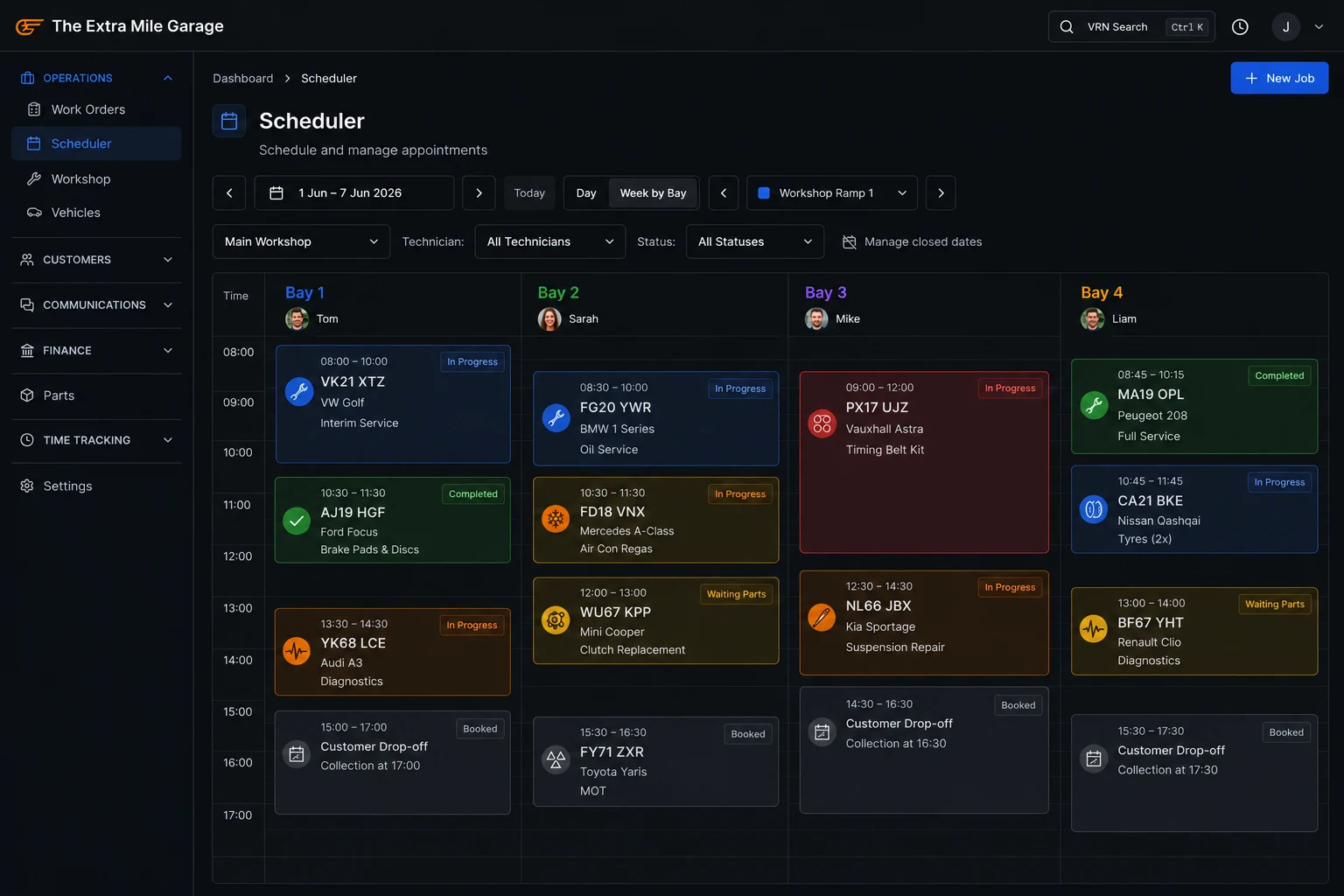
A bay scheduler is a visual calendar showing every bay in your workshop and the jobs booked into each one. Think of it as the whiteboard on the wall, except it updates itself, everyone can see it, and it connects to everything else in your garage management software.
Day view. Each bay is a column. Each job is a block showing the customer, vehicle, job type, and estimated duration. You can see at a glance which bays are busy, which have gaps, and where to slot the walk-in that just arrived. Drag and drop to move a job from one bay to another.
Week-by-bay view. Zoom out to see the whole week across all bays. This is where you spot problems before they happen: Thursday afternoon is empty across all four bays, but Friday morning is overbooked on two of them. Rebalance now, not when the customer arrives.
Technician assignment. Each job is assigned to a specific technician. The scheduler shows who is working on what and when they’ll be free. When the diagnostic comes in and needs your most experienced technician, you can see instantly whether they’re available or when they will be. No more walking the floor asking “are you nearly done?”
Automatic scheduling from online bookings. When a customer books an MOT online, the booking system creates the job, assigns it to the right bay type (your MOT bay), and blocks the time slot. No manual entry. No risk of the online booking clashing with something your service advisor booked by phone.
Job status tracking. Each job moves through statuses: booked, checked in, on ramp, waiting for parts, complete, collected. The scheduler and the workshop kanban board show these statuses in real time. The service advisor sees what’s in progress without walking to the bay. The customer can get automated updates based on job status changes.
How to set up bay scheduling for your garage
Step 1: Define your bays. How many do you have? What types? Most garages have general bays and an MOT bay. Some have a dedicated diagnostic bay or an alignment bay. Configure each bay in your garage management system with its type and any constraints (the MOT bay only does MOTs and related work).
Step 2: Set standard job durations. An MOT takes about an hour. A full service takes 90 minutes to 2 hours depending on the vehicle. A diagnostic is 30-60 minutes. A cambelt is half a day. Set default durations for each service type. These estimates don’t need to be perfect. They need to be close enough that the scheduler doesn’t double-book.
Step 3: Assign technicians to bays. Some garages run a fixed model (Dave is always on Bay 2). Some run a flexible model (technicians move between bays based on the schedule). Either works. The scheduler needs to know which technicians are available and what each can do. Your MOT tester can only be assigned to MOT jobs. Your apprentice shouldn’t be assigned to a timing belt.
Step 4: Connect online booking to the scheduler. When a customer books online, the booking should create a job and slot it into the first available bay of the right type. This removes the manual step of someone transferring the booking from the website to the diary.
Step 5: Use the kanban for the day’s workflow. The bay scheduler manages what’s coming. The kanban board manages what’s happening now. Jobs move across columns: to do, in progress, waiting for parts, complete. Your service advisor lives on this screen. It tells them what to communicate to customers without interrupting technicians.
What changes when you get bay management right
The difference between a well-managed 4-bay garage and a chaotic one isn’t the technicians or the equipment. It’s visibility.
When every job is visible on the schedule, double-bookings stop. When completion times are tracked against estimates, overruns get caught early. When technicians are assigned by skill, the right person does the right job. When the kanban shows real-time job status, the service advisor stops interrupting the workshop to ask “is it done yet?”
A 4-bay garage running 10-15 jobs a day with proper bay allocation can add 1-2 extra jobs per day simply by eliminating idle time between bookings. That’s £150-300 per day in additional revenue from the same team, the same bays, and the same hours. Over a year, it adds up to £35,000-70,000 in recovered capacity.
The automotive workshop that manages its bays well doesn’t need more space to grow. It needs better visibility into the space it already has.
Frequently asked questions
Your bays are only as productive as your schedule allows
A whiteboard on the office wall was fine when you had two bays and one technician. It’s not fine when you’re running four bays, three technicians, an apprentice, and 12 jobs a day. Digital bay scheduling gives you visibility across every ramp, every job, and every member of your team. The idle time between jobs shrinks. The double-bookings stop. And you stop being the only person who knows what’s supposed to happen today.
Torqueflow’s bay scheduler shows every job across every bay with drag-and-drop booking, technician assignment, and real-time status tracking.