
AI Purchase Invoice Scanning
Stop typing supplier invoices in. Send them in instead.
Every garage has someone typing supplier invoices into the system. Part numbers, quantities, prices, VAT – line after line, several times a week. It’s slow, it’s error-prone, and it’s unnecessary.
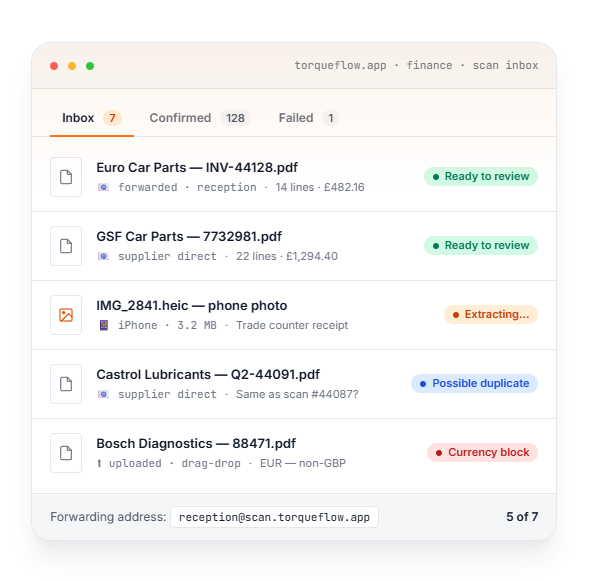
Torqueflow’s AI extracts the supplier, the document number, every line item, the totals, and the VAT – from a PDF, a phone photo, or a forwarded email. You review on a side-by-side screen and click Confirm. The purchase invoice is created. The job is done.
Email · drag · photo
Matched / Likely / Unmatched
Totals checked, currency caught
Per-team, per-supplier
Three ways in
Whichever way the invoice arrives, the workflow ends in the same place.
Pick whichever fits your day. PDF, JPG, PNG, WebP and HEIC, up to 50 MB. Multi-page PDFs are fine.
Forward an email
Each garage gets a dedicated scan address. Forward any supplier email straight to it – or give the address to your supplier and they email invoices direct. No account, no learning, no friction.
To: reception@scan.torqueflow.app
From: accounts@eurocarparts.co.uk
Subj: Invoice INV-44128 · 1 attachment
Drag & drop a PDF
On the desktop, click Upload Scan at Finance → Purchases → Scan Inbox. Drag the PDF in or click to pick. Multi-page PDFs are fine.
⤓ Drop PDF here
Snap a phone photo
On your phone, tap Take a photo in the same dialog. Camera opens; shoot the paper invoice; tap upload. Good for the single-page receipt the supplier handed you over the counter.
📱 IMG_2841.jpeg
3.2 MB · iPhone ↑ uploading
What the AI does
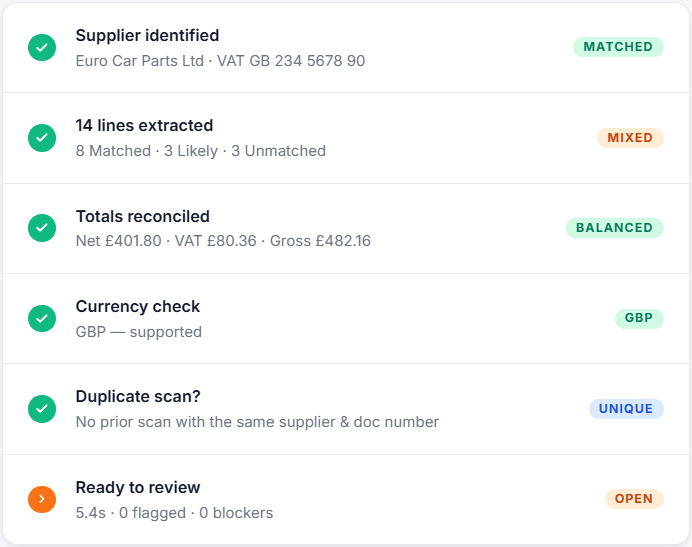
In the 5-15 seconds between upload and “Ready to review”, the AI:
No percentage scores. No “84% confidence” guessing games. The AI uses clear traffic-light buckets you can scan in a glance – Matched, Likely, Unmatched – and tells you upfront when something needs your attention.
The review screen
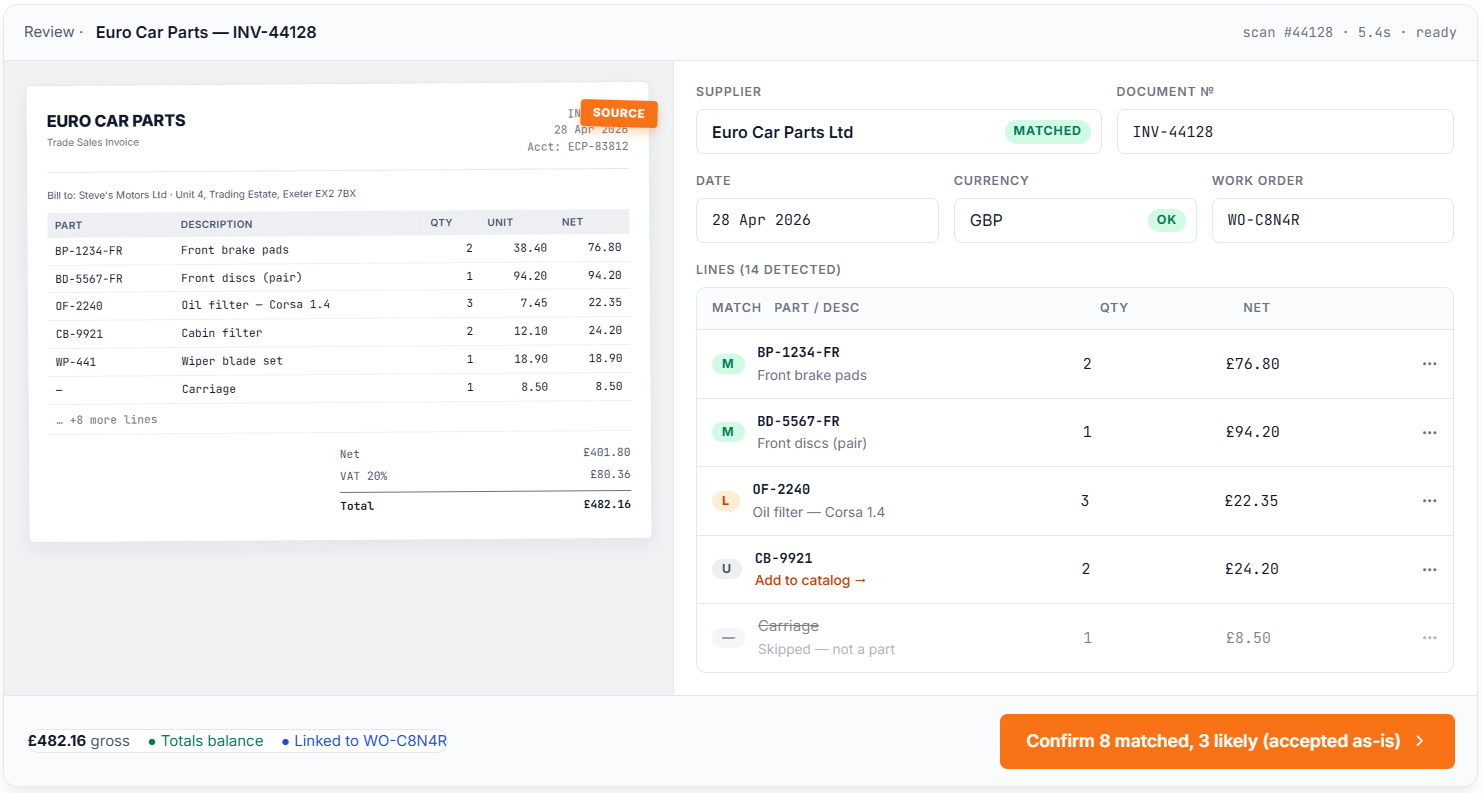
Source on the left. Extracted form on the right. One click to confirm.
Edit any field directly. Pick a different supplier. Add a part to your catalog from an unmatched line. Skip lines that aren’t parts. The Confirm button label tells you exactly what’s about to happen.
The review screen is split: source preview on the left (the original PDF or photo), extracted form on the right. On phones, the form comes first with a “View original” link.
You can:
The Confirm button label tells you exactly what’s about to happen: “Confirm 8 matched, 3 likely (accepted as-is)”. If any line is flagged for review, the button changes to “Resolve 2 flagged lines before confirming” – so you can’t accidentally confirm with unfinished work.
When you click Confirm, the purchase invoice is created in your Finance → Purchases list, with the right supplier, the right work-order link (if any), the right nominal codes, and every line in place. New suppliers and parts you added inline appear in their respective lists too.
Edge cases handled
The first 30 seconds of a feature look easy. The next six months are about edge cases.
TorqueFlow’s review screen handles the awkward stuff inline rather than failing silently – you always know exactly why a scan is flagged and what to do about it.
Non-GBP invoice
“This is a EUR invoice. Non-GBP invoices aren’t supported yet. Discard this scan and re-upload as GBP.” Confirm is disabled.
Trade-counter receipt
“This is a trade-counter receipt (parts collection). Confirming creates the Purchase Invoice only – your stock levels won’t update yet.”
Duplicate detected
“This scan matches an earlier scan. Review the original to avoid double-booking the invoice.” Two buttons: View original / Discard.
Supplier not VAT-registered
Banner appears when you pick the supplier. Confirm is disabled until every line has 0% tax – there’s a one-click “Zero out all tax” to fix it.
Extraction failed
Owners and managers see a Retry button. Service advisors see a banner asking them to find a manager. No silent failures.
Credit note
When document type is Credit Note, an “Original invoice” picker appears, required to confirm. Doesn’t sync to Xero yet – we’re working on it.
Scan addresses
Scan addresses, controlled by your team
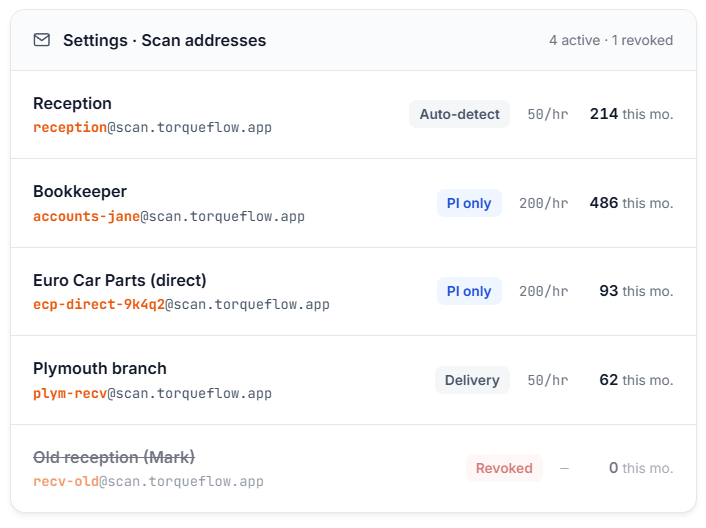
Every scan address is created by an Owner or Manager from Settings → Scan Addresses. Each address has:
When a scan address is no longer needed (staff leave, a supplier changes), revoke it with a reason. Anyone still emailing it gets a friendly auto-reply telling them to ask for a new address. Need a fresh address with the same settings? Replace it in one click.
The real Typing vs scanning
The same job, two ways. One of them isn’t worth doing anymore.
|
Typing it in |
Scanning it in |
|
|
3–5 minutes, every time |
30–60 seconds, every time |
|
|
Multi-line invoices |
Linear with the line count |
Same time as a single-line invoice |
|
Error rate |
Whatever your typist’s having today |
AI flags totals that don’t reconcile |
|
Supplier sends 5 in one email |
5 paste cycles |
All 5 land in the inbox in seconds |
|
Supplier emails the invoice direct |
Still has to be typed by you |
Lands ready-to-review automatically |
|
Boring |
Yes |
Less so |
FAQ
The questions that come up.
Anything else, drop us a line – we’ll answer plainly. No “contact sales for pricing”.
Ready to stop typing?
Start a free trial, create a scan address in 30 seconds, and see your first scanned invoice on the screen in under a minute.