
Standalone quotes

Quote them once. Convert them in a click.

A walk-in asks for a price on a clutch. A regular wants to know what the upcoming MOT and service will cost. A fleet customer needs three vehicles quoted by lunchtime.

None of them have a work order yet. None of them want to wait while you write it on a notepad and ring back.

Build a quote in Torqueflow’s standalone quote builder, send a branded PDF and a portal link in the same click, and the customer decides on their phone. Accept it and you convert it to a work order in one click – bays booked, parts allocated, labour set up, all inherited from the quote.
  • Branded PDF & portal link
  • Tap-to-accept on mobile
  • One-click convert to work order

Build a quote

Build a quote and a branded PDF in minutes.

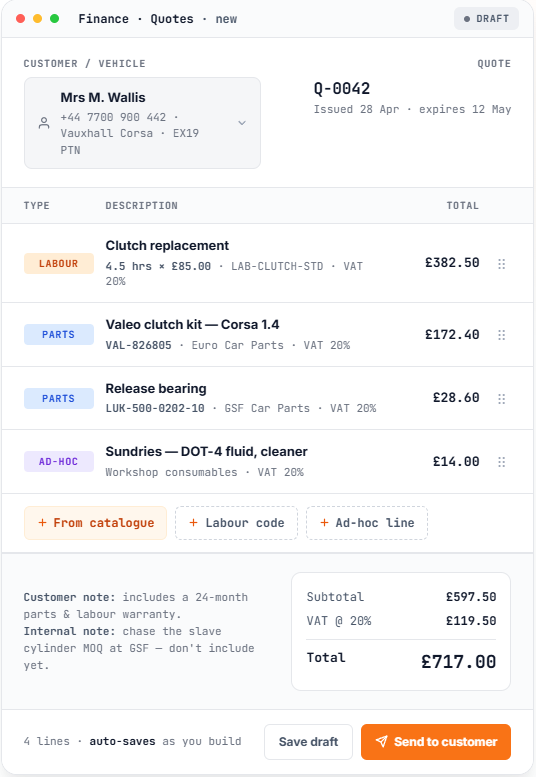
At Finance → Quotes, click Create quote. The builder is the same as your invoice editor – because they should be. Your team already knows how to use it.

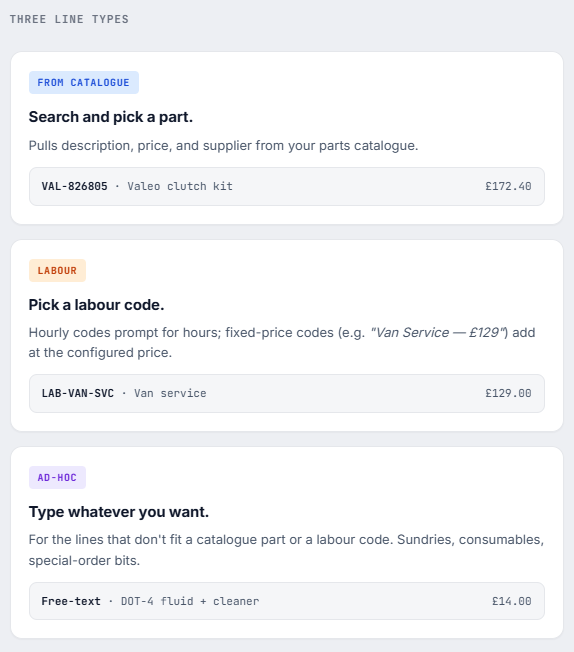
Customer is a searchable picker. Add a new customer inline if they’re not in your records yet. Vehicle is optional, filtered to that customer’s vehicles – leave blank for general quotes.

Quote date and expiry date default from your settings. Customer notes appear on the PDF and portal; internal notes never do.

VAT, discounts, nominal codes inherit from your finance settings, so most lines need no manual input. A live total at the bottom updates as you build. Save as draft and come back later, or send straight away.
One click to send

One click to send. Three things at once.

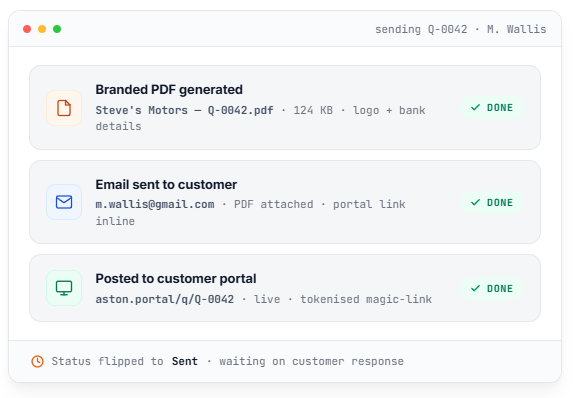
Click Send to customer and Torqueflow does three things at once:

  • Generates a branded PDF with your logo, your colours, your registration and VAT numbers.
  • Emails the customer with the PDF attached and a link to the portal version.
  • Posts the quote to the customer’s portal with the same content, ready for them to act on.

If the customer has no email, the Send button shows you why – no silent failures.
The customer decides on their phone

The customer decides on their phone.

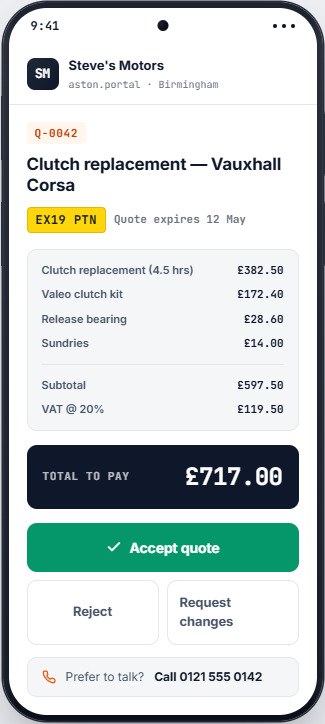
Quotes show up beautifully on a phone screen because that’s where most customers will read them. Three buttons:

  • Accept – the confirmation dialog displays the gross amount in big text so accidental taps don’t accept by mistake.
  • Reject – optional reason field.
  • Request changes – required message, locks the decision buttons until you send a revision.

Whatever they pick, you see it in your Quote Inbox in real time and you get an email – sent to the staff member who created the quote, not blasted to everyone.

The portal also shows a Call the garage tap-to-call button on every quote page. Some customers prefer talking – that’s fine. The button is right there.
Revisions

Revisions, the easy way.

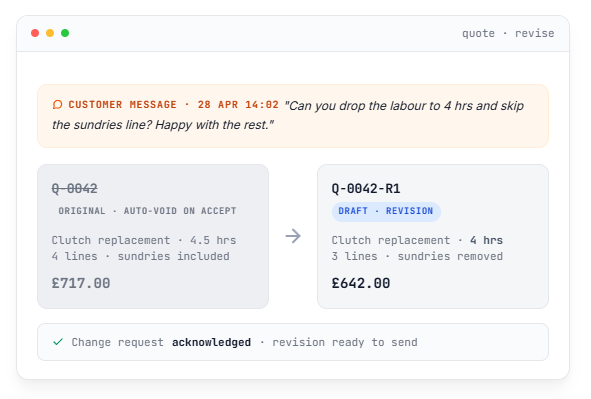
Customer wants the labour reduced and one line removed? Click Revise quote in the Quote Inbox or on the quote’s detail page. Torqueflow:

  • Creates a new draft from the original.
  • Marks the customer’s change request acknowledged.
  • Lets you edit prices, lines, expiry – anything.

When you send the revision, the original quote auto-voids the moment the customer accepts or rejects the new one. No two live quotes for the same job, no confusion about which one’s current.
Convert

Convert to work order in one click

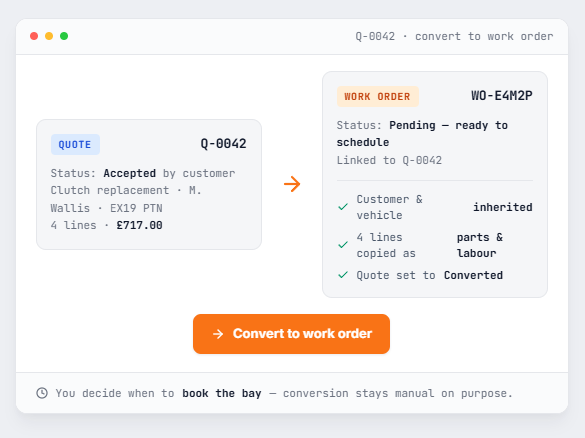
When the customer accepts – or even just on a Sent quote you want to schedule – click Convert to work order. Torqueflow:

  • Creates a new work order linked to the quote.
  • Inherits the customer and vehicle.
  • Pulls the quote lines into the work order as parts and labour.
  • Sets the quote to Converted (terminal status).
  • Leaves you on the new work order, ready to schedule.

Conversion is deliberately manual. Acceptance means the customer wants the work; you decide when to actually slot it in.
The Quote Inbox

The Quote Inbox. Every interaction in one place.

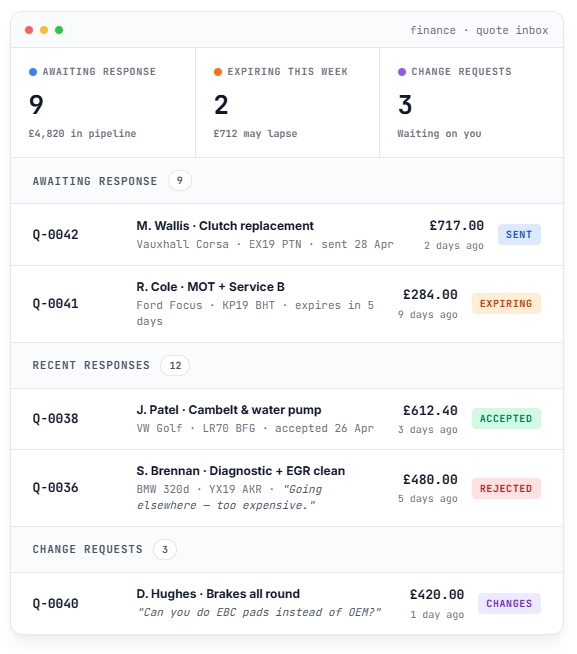
Every customer interaction with a quote shows up in your Quote Inbox dashboard. Three sections:

  • Awaiting response – quotes you’ve sent that haven’t been actioned yet. Sorted by sent date, with an amber warning if expiry is within 7 days.
  • Recent customer responses – accepted (green) or rejected (red) in the last 30 days, with the rejection reason preview if any.
  • Change requests – customer messages waiting for you to acknowledge or revise.

Three stat cards at the top summarise everything at a glance. Click any row to drill into the quote.
How this differs

How is this different from existing Torqueflow quotes?

Torqueflow has had a quote system for inspection findings since the start – when Dave finds something during a service, photo + severity + price becomes a quote line for Chloe to send. That flow stays exactly as it was. Standalone quotes are for the situations that aren’t tied to an inspection.

New · Standalone quote

No work order yet. No vehicle on the ramp.

Walk-in pricing, fleet quotes, pre-booking estimates, “what would it cost to…” questions over the phone.

Starts from: Finance → Quotes → Create quote.
Ends as: a work order (after one-click convert).
Existing · Inspection-findings quote

Dave finds something during a service.

Photo + severity + price becomes a quote line. Chloe sends it. The customer approves the extra work alongside the booked job.

Starts from: an open work order.
Ends as: extra lines on that same work order.
The two systems share their portal experience and PDF style. The difference is just the starting point — and both flows live alongside each other.

Frequently asked

The questions garages ask before they switch.

Inspection-findings quotes start from a work order: Dave finds something while servicing the car, the finding becomes a quote line. Standalone quotes start from nothing – no work order yet, no vehicle on the ramp. The two systems share their portal experience and PDF style; the difference is just the starting point.

Yes – and it’s deliberate. Acceptance is the customer signal that they want the work. Conversion is you deciding when to schedule it. The one-click conversion takes seconds, but you stay in control of the schedule.

Yes – Download PDF is on every quote page. You can attach it to your own email instead of using the built-in send. The customer just won’t get the portal-side experience (Accept / Reject / Request Changes / Pay) – they’d have to phone or text you to confirm. Most garages prefer the built-in send for that reason.

The customer sees a courtesy expired-quote page in the portal with your phone number prominently displayed and a “Request a new quote” message. Decision buttons disappear. The PDF is still downloadable. You see the quote in your inbox flagged as expired.

Yes. Duplicate works from any status and creates a new draft. Useful for “same again next year” repeat work or for templating common job types.

Yes. They live at Finance → Quotes rather than inside a work order. They have their own number sequence (e.g. Q-0042) configurable in Settings. The PDF, portal experience, and Convert-to-WO flow are designed for this standalone use.

No. Quote links are tokenised magic-link style – tap and they’re in. No sign-up, no password.

Ready to quote faster?

Start a free trial. Build your first quote in 3 minutes. Send it. Watch the customer accept on their phone before you’ve made a cup of tea.